The hermes agent mission control dashboard is the single screen you use to run your AI agent — a live control room that shows what your agent is doing right now, what it has lined up next, and what it has already finished, all in one calm, organised view. Instead of squinting at a wall of scrolling text and hoping for the best, you watch your work happen on a clear dashboard. It sits at the heart of Julian Goldie's Agent OS, and once you have used it, going back to a bare text window feels like flying blind.
📺 Watch: NEW Hermes Mission Control is INSANE!
🔥 Get the Agent OS as a free bonus: AI Profit Boardroom members get the full Agent OS zip, prompt libraries, daily tutorials and weekly live coaching calls. → Get inside
What is the Hermes Agent Mission Control Dashboard?
Think of Hermes as your tireless AI worker, and the mission control dashboard as the room you manage it from. Hermes does the tasks — writing, researching, building pages, sorting files, publishing content — while the dashboard gives you a clean window into every move it makes.
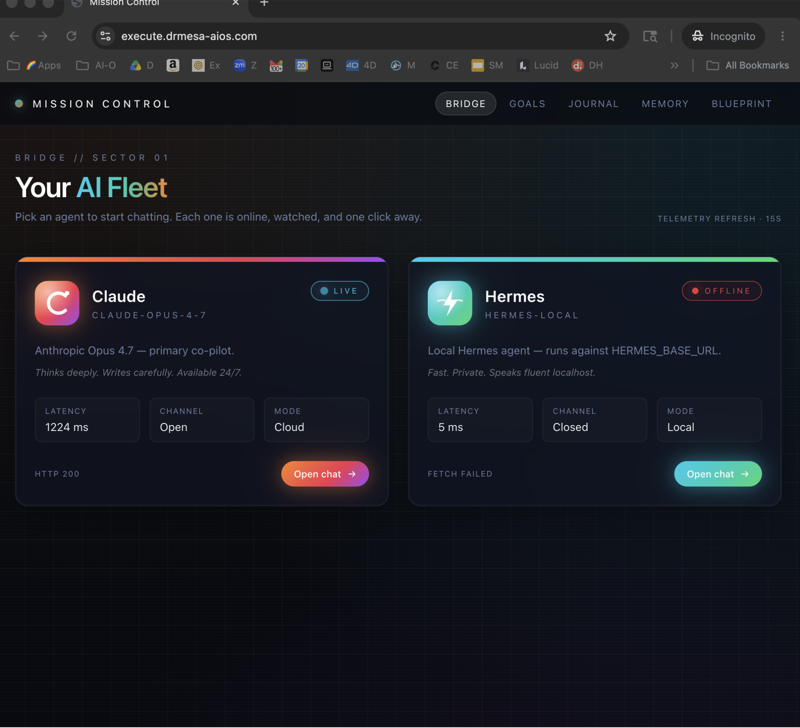
It is the home screen of the Agent OS: a private control centre that runs on your own computer. You open it in your browser and see your whole AI team at a glance — who is working, what they are working on, and where the finished results land. No guessing, no lost work, and no wondering whether your agent is still going or has quietly got stuck.
What the dashboard shows on screen
Everything you need to run an AI worker lives on one page, split into simple panels:
- Agent status — a live badge for each agent that reads idle, working, or finished, so you always know your worker is actually running.
- Task queue — the ordered list of jobs waiting, in progress, and done, so nothing gets forgotten and you can see what is next.
- Live logs — a running feed of each step the agent takes as it happens, written out in plain view rather than hidden away.
- The agents map — a visual constellation of your whole team, where each agent is a point that lights up the moment it starts working.
- Workspace outputs — the folder where finished files land, from articles and images to videos and web pages, ready to open and preview.
- Shared memory — the goals, notes, and history your agents read and update, so they remember context from one job to the next.
Why a mission control dashboard beats a raw terminal
A plain text window shows you one long stream of words. It works, but it hides the things you most want to know. Has the agent finished, or is it stuck? What has it produced so far? What is it about to do next? You end up scrolling and re-reading just to find out.
The mission control dashboard answers all of that at a glance. Status badges tell you if work is live. The queue tells you what is left. The live logs let you follow the thinking and step in early if the agent starts drifting off course. And because the finished files sit in their own panel, you never lose a result in the noise. It turns a firehose of text into a calm, visual overview that anyone can read — no technical background needed.
📺 Watch: Hermes Workspace: New Mission Control is INSANE!
How the dashboard fits into the Agent OS
The Agent OS is best pictured as a business with its own headquarters. Mission control is the front desk and the operations board rolled into one. From here you can reach every part of the system: the different agents on your team, the workspace where their output is stored, and the shared memory that keeps everyone on the same page.
Hermes is the main worker in that headquarters, but it is not alone. The Agent OS can run a whole line-up of specialists side by side, and the agents map shows them all together. Mission control is simply the one screen that ties the team, the tasks, and the results into a single place you actually enjoy looking at.
Here is how the main panels compare at a glance:
| Panel | What appears here | What it gives you |
|---|---|---|
| Agent status | A live badge per agent: idle, working, or finished | Instant proof your worker is running, not stuck |
| Task queue | Jobs waiting, in progress, and done, in order | You always know what is next and what is left |
| Live logs | A real-time feed of every step the agent takes | Follow the work and stop it early if it drifts |
| Agents map | A visual constellation of your whole team | See the full line-up at once, not one agent at a time |
| Workspace outputs | Finished articles, images, videos, and pages | Every deliverable in one place, ready to preview |
| Shared memory | The goals, notes, and history agents read and write | Your agents remember context, so you stop repeating yourself |
📺 Watch: Hermes AI SEO Workspace: New FREE Mission Control!
An example mission, start to finish
Say you want a blog article written and formatted. Here is how it plays out on the dashboard:
- You type a plain instruction into mission control, such as "Write and format a 1,000-word article on local SEO".
- The job appears in the task queue, and the Hermes status badge flips from idle to working.
- The live logs begin streaming, so you watch it plan the outline, research the topic, draft the copy, and tidy the formatting, step by step.
- On the agents map, the Hermes point lights up; if it hands part of the job to another specialist, that point lights up too.
- The finished article lands in workspace outputs as a file you can open and preview in a single click.
- The dashboard writes what happened into shared memory, so the next job builds on it instead of starting from a blank slate.
Start to finish, you never touched a wall of raw text. You gave one instruction and watched the result arrive.
How to get the Hermes Agent Mission Control Dashboard set up
The dashboard is part of the Agent OS that Julian Goldie builds and runs with his community. Julian has more than 411,000 YouTube subscribers, over 75,000 members across his groups, more than 10 years of hands-on experience, and a best-selling book — and this is the same control centre he uses every day. Inside the AI Profit Boardroom, it is set up for you, so you skip the fiddly part and go straight to running your own AI team from one screen.
If you want the Hermes Agent Mission Control Dashboard set up for you, check out the AI Profit Boardroom — your done-for-you Agent OS is waiting inside. → Get your Hermes mission control set up for you
Frequently asked questions
Do I need to know how to code to use it?
No. You give the dashboard plain-English instructions, the same way you would brief a member of staff. The panels do the rest, showing you status, progress, and results in words and simple visuals.
Does it run on my own computer or in the cloud?
Mission control runs locally, on your own machine, and opens in your browser. That keeps your work private and puts you in full control, rather than handing everything to an outside service.
What is the difference between Hermes and the Agent OS?
Hermes is the worker that carries out the tasks. The Agent OS is the whole system around it — the team, the workspace, and the memory. The mission control dashboard is the main screen of that Agent OS, where you watch and steer everything.
Can I watch more than one agent at once?
Yes. The agents map shows your entire line-up together, and each point lights up when its agent is active. That means you can run several jobs side by side and still see the whole picture on one screen.
The Bottom Line
A raw text window makes you dig for the truth about what your AI agent is doing. The hermes agent mission control dashboard puts that truth on the surface: status, queue, live steps, the full team, the finished files, and the shared memory that ties it all together. It turns running an AI worker from a nervy guessing game into a calm, visual job you can actually enjoy.
It is the beating heart of the Agent OS, and it is the difference between hoping your agent is working and knowing it is. Set it up once, and you run your whole AI team from a single, clear screen — start to finish.