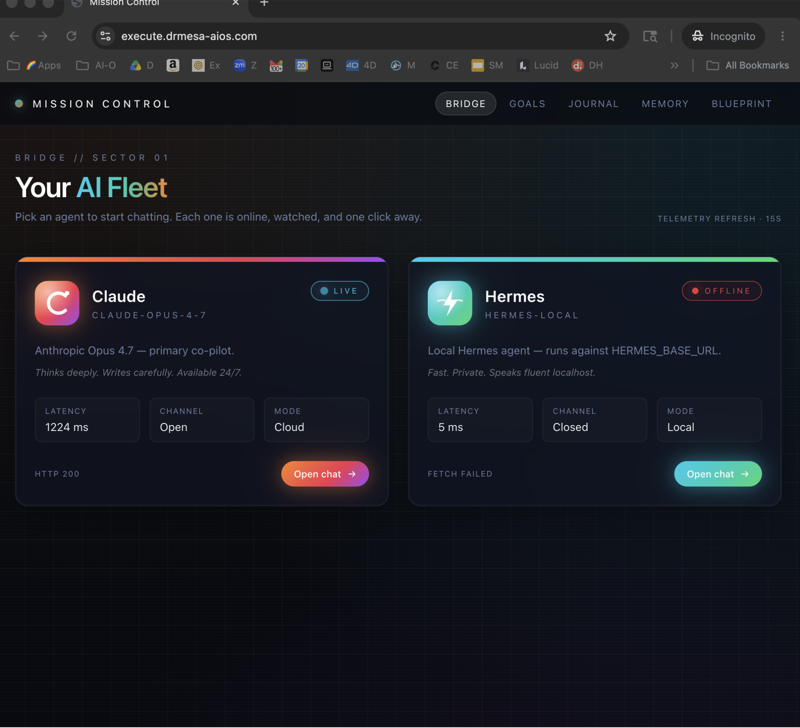
Hermes WebUI on your phone is a game-changer for daily AI agent use.
Most agents are tied to your desktop.
Hermes WebUI breaks that.
Properly set up, you access your Hermes from any phone, tablet, or laptop — anywhere in the world.
This post covers the mobile-first pattern.
Why Hermes WebUI On Mobile Matters
When your AI agent is mobile-accessible:
- You message it during commute
- Voice-dictate prompts on the go
- Approve agent decisions from your phone
- Check on long-running tasks while away from desk
- Hand off ideas the moment they hit you
A desktop-only agent loses 60% of usable hours.
A mobile-accessible one works for you all day.
🔥 Want my full Hermes WebUI mobile setup playbook? Inside the AI Profit Boardroom I've documented Cloudflare Tunnel setup, security hardening, mobile UX patterns, and voice integration. 3,000+ members already running this. Click below. → Get the mobile playbook
The Hermes WebUI Architecture
Three pieces:
1. Hermes runs on your machine. Mac, Linux, or VPS.
2. Hermes WebUI exposes a web interface. localhost:8080 by default.
3. Cloudflare Tunnel exposes localhost to the public internet. Free.
Now you point your phone browser at the Cloudflare URL and get full Hermes access.
Local Network Mobile (Easy Mode)
If your phone is on the same WiFi as your Mac:
- Find your Mac's local IP (
ipconfig getifaddr en0) - Phone browser:
http://[Mac IP]:8080 - Hermes WebUI loads
This works at home but not on cellular.
For most users, start here.
For broader Hermes setup, my hermes ai course post covers the base install.
Anywhere Mobile (Cloudflare Tunnel)
Three commands:
1. Install cloudflared:
brew install cloudflared
2. Authenticate with Cloudflare:
cloudflared tunnel login
Opens browser, sign in, pick your domain.
3. Run the tunnel:
cloudflared tunnel --url http://localhost:8080
Cloudflare returns a public URL like https://abc123.trycloudflare.com.
Open that URL on your phone from anywhere.
Hermes WebUI accessible globally.
For setup script details, my hermes deepseek post covers similar tunnel patterns.
Add Authentication
Public Cloudflare URL means anyone can access your Hermes.
Add basic auth before going public.
In WebUI settings: Add basic auth username + password.
Or use Cloudflare Access for proper SSO.
For solo use, basic auth is fine.
For team use, Cloudflare Access.
Mobile UX Patterns
Hermes WebUI is responsive — but mobile patterns differ from desktop.
1. Use voice-to-text. iOS dictation is excellent. Tap mic, speak, send.
2. Pre-built skills > free-form prompts. Mobile typing is slow. Tap a skill, fill 1-2 fields, send.
3. Profile switching matters more. Different profiles for different mobile use cases (e.g. Walk-and-Think vs Active-Work).
4. Schedule outputs to phone. Run scheduled tasks that summarise to Telegram or email.
For voice-driven agent patterns, my build your own openclaw post covers voice integration.
Comparing Mobile Options
1. Hermes WebUI on phone browser. Most flexible. Full UI access.
2. Telegram bot. Faster for short queries. Limited UI.
3. Custom mobile app. Best UX but most work to build.
Best practice: combine all three.
- WebUI for sessions, schedule edits, profile management
- Telegram for quick queries
- iOS Shortcut for voice-trigger
For Telegram setup specifically, my hermes deepseek post covers the bot pattern.
Security Considerations
Public Hermes WebUI = potential attack surface.
Hardening checklist:
- HTTPS only (Cloudflare provides)
- Basic auth or Cloudflare Access
- Rate limiting (Cloudflare WAF)
- API keys in environment vars, not config files
- Regular Hermes updates
- Audit logs enabled
For solo personal use, basic auth + Cloudflare is enough.
For agency / business use, full SSO + WAF + audit logging.
Battery + Data Considerations
WebUI on phone uses:
- Cellular data: ~10-50KB per message (text only)
- Battery: minimal — it's a thin client
Models run server-side. Phone is just chat UI.
Even on slow 3G, Hermes is usable.
For low-bandwidth patterns specifically, my deepseek openclaw post covers efficient model use.
Real Mobile Use Cases
1. Walking commute. Voice-prompt research questions. Hermes summarises by time you arrive.
2. Meeting prep. Quick "summarise this client's last 5 sessions" before the call.
3. Idea capture. Jot a half-thought, ask Hermes to expand. Ship while waiting for coffee.
4. Schedule tweaks. Approve / reject scheduled task outputs from phone.
5. Out-of-office continuity. While at events, Hermes still runs scheduled tasks. You check from phone.
Any of these alone justifies the mobile setup. Together they 10x your AI use.
🔥 Want my Hermes WebUI mobile + voice + Telegram integrated setup? Inside the AI Profit Boardroom I've put up the full multi-channel mobile pattern — voice triggers, Telegram quick queries, WebUI deep work, all sync'd. 3,000+ members already running this. Click below. → Get the mobile + voice + Telegram setup
Hermes WebUI Mobile FAQ
Does it work on iPhone?
Yes — Safari, Chrome, Firefox all work fine.
Does it work on Android?
Yes — same as iPhone.
Can I install as PWA?
Add to Home Screen on iOS / Android. Behaves like an app.
Battery drain?
Minimal — text-only UI, no constant polling.
Cellular data use?
Low — ~10-50KB per message.
Multi-device sync?
Yes — sessions sync via Hermes daemon. Open WebUI on phone + laptop, both show same conversation.
Related Reading
- Hermes AI course — base setup
- Hermes DeepSeek — Telegram integration
- DeepSeek OpenClaw — efficient model use
Final Take
Hermes WebUI on mobile is a game-changer.
Cloudflare Tunnel.
Basic auth.
Phone browser.
Now your AI agent works for you anywhere — at desk, on the train, in line for coffee.
If you set this up tonight, your AI use 2x's tomorrow.
🔥 Ready to put Hermes on your phone tonight? Get a FREE AI Course + Community + 1,000 AI Agents 👉 join here. Or grab the mobile setup inside the AI Profit Boardroom.
Learn how I make these videos 👉 aiprofitboardroom.com
Video notes + links to the tools 👉 skool.com/ai-profit-lab-7462
Hermes webui mobile is the always-on agent — set it up tonight.